I wanted to change the wallpaper of my Honda Odyssey 2014. This blog post shows how to do it successfully.
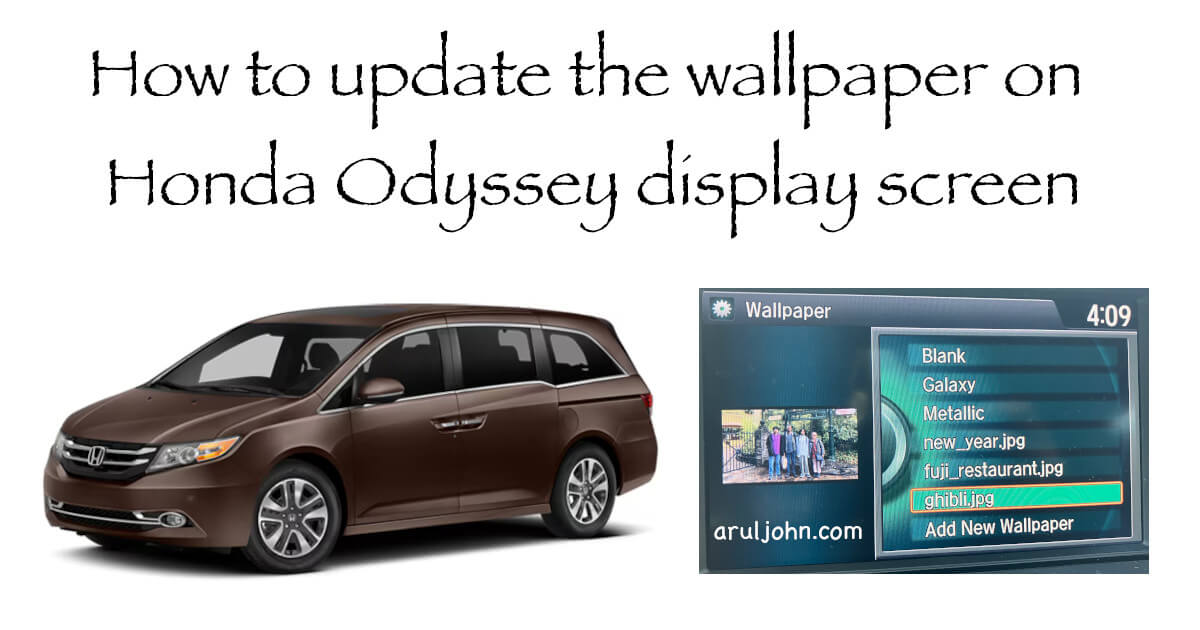
What you need
Hardware
- USB flash drive
- Honda Odyssey, obviously 🚙
You will copy your images to this USB flash drive.
These steps worked on my Honda Odyssey 2014, and may work on other Honda Odyssey models too.
Software ✅
You will need image editing software to resize the images.
- Microsoft Paint, if you use Windows
- Preview app, if you use macOS
Software that will NOT work ❌
If you edit your photos with Gimp or Photoshop, the generated images will not be recognized by your Honda Odyssey. Click here to see why.
Resize or crop the image to 1680x936 or 840x468
- The Honda Odyssey takes up to 3 custom images that you can upload.
- Dimension of each image can be either 1680x936 or 840x468.
First, get a photo or image that you want to use.
Make sure the photo is in JPG or BMP format.
Next, open your photo editor. This may be Microsoft Paint on Windows or Preview on macOS.
Resize or crop your image to make it either 1680px by 936px or 840px by 468px. Those are the only dimensions that will work. You can try other dimensions as well, but your Odyssey may not recognize them.
Upload image file from computer to USB flash drive
After you do the resizing, upload the resized image to your USB flash drive. Make sure you have saved it in the home directory of the USB flash drive.
Safely unplug your USB flash drive.
Copy the images from your USB flash drive to your Honda Odyssey
Go to your Honda Odyssey. Turn on the engine and plug in the Honda Odyssey's USB drive.
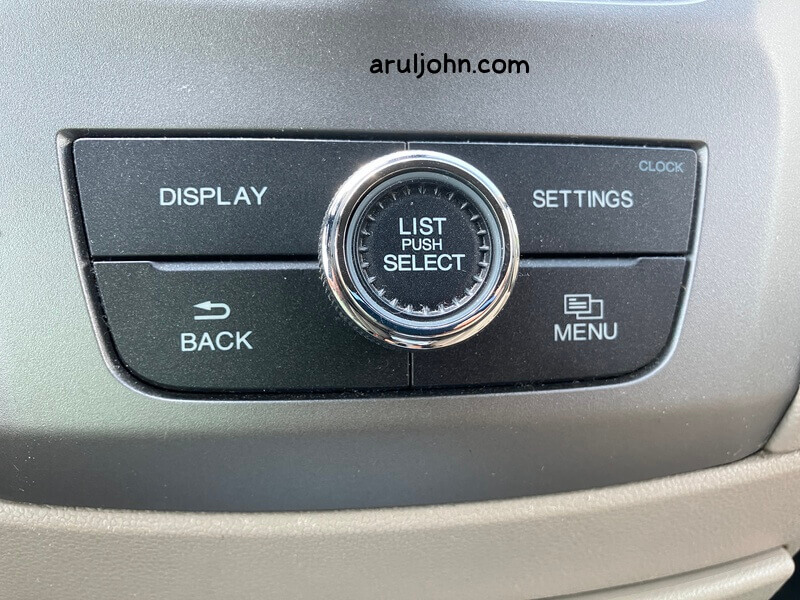
Click on the Settings button.
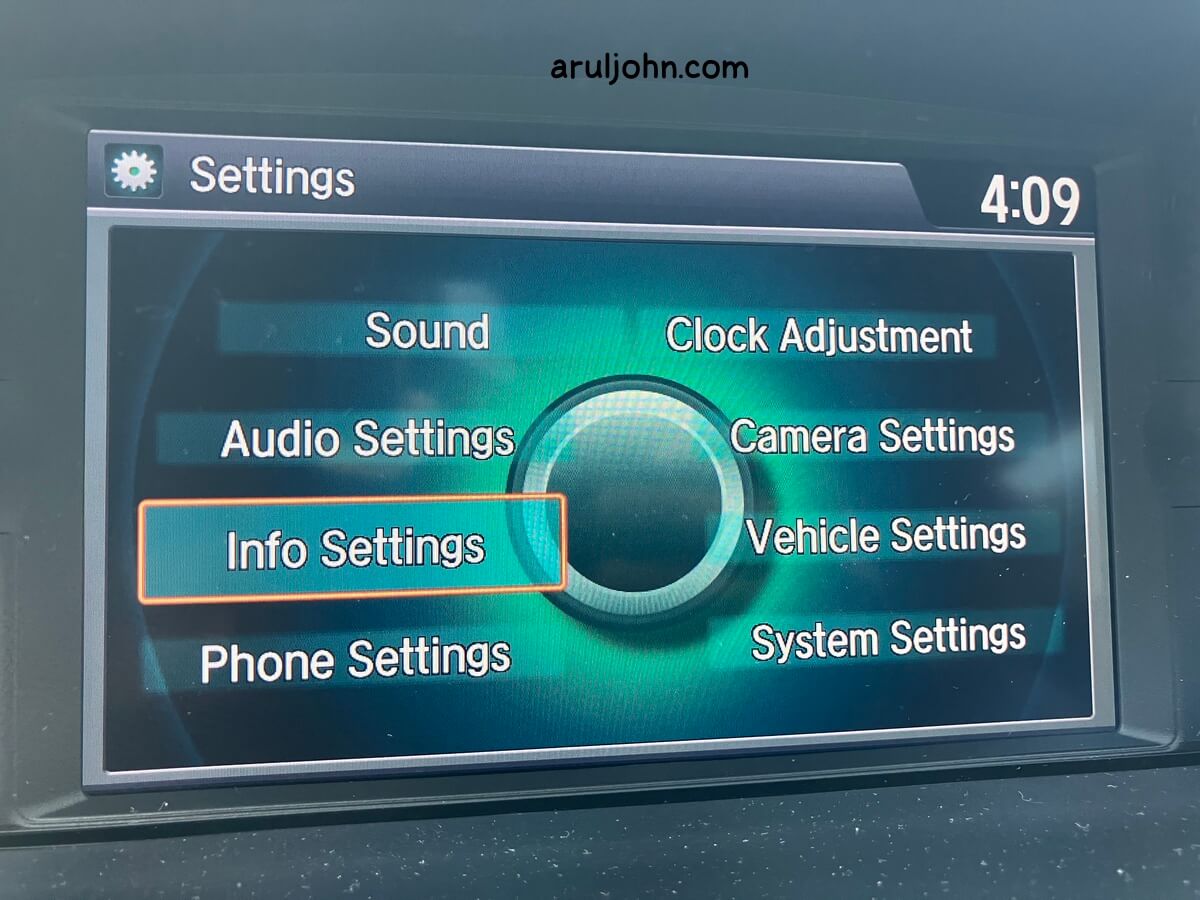
You will see this Settings screen. Scroll down to the Info Settings menu item.
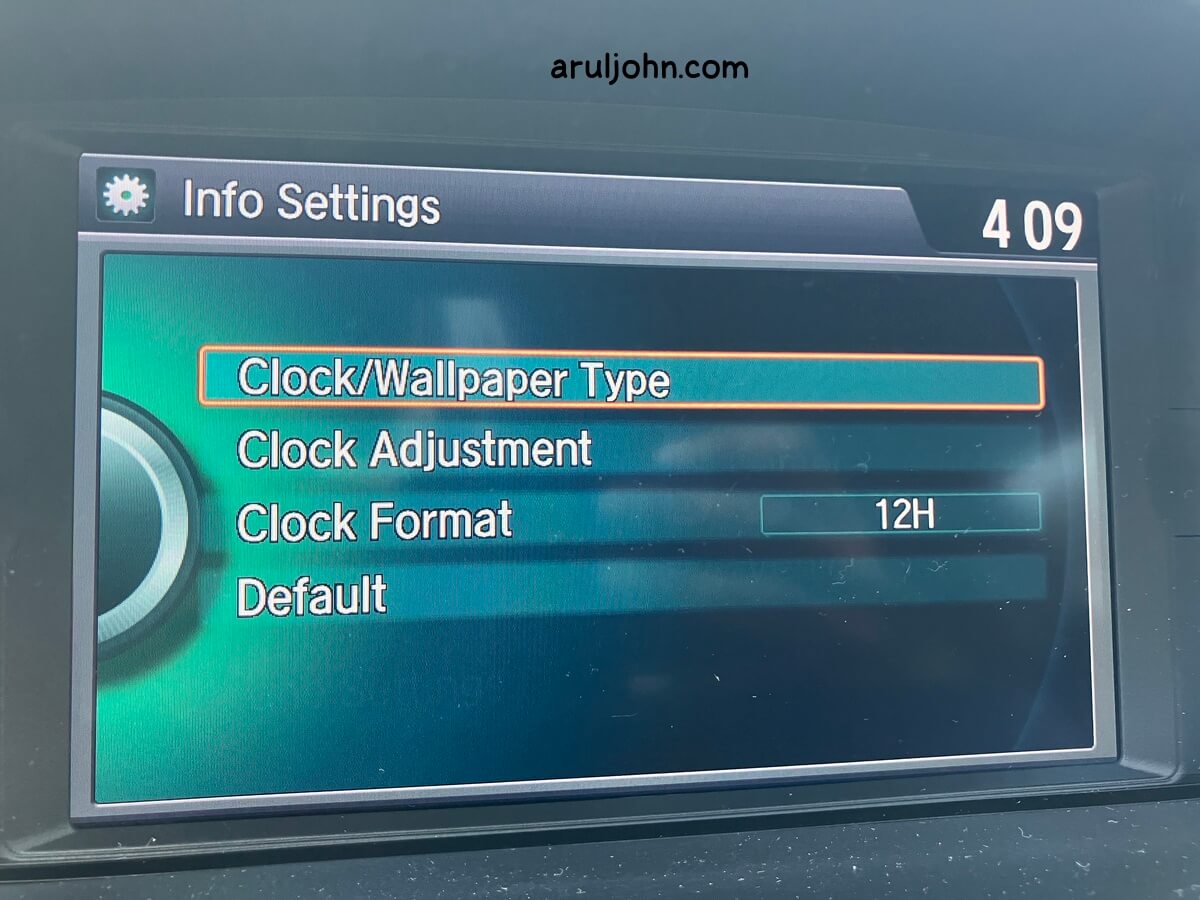
In the Info Settings screen, scroll to Clock/Wallpaper Type.
In the Clock/Wallpaper Type screen, select Wallpaper.
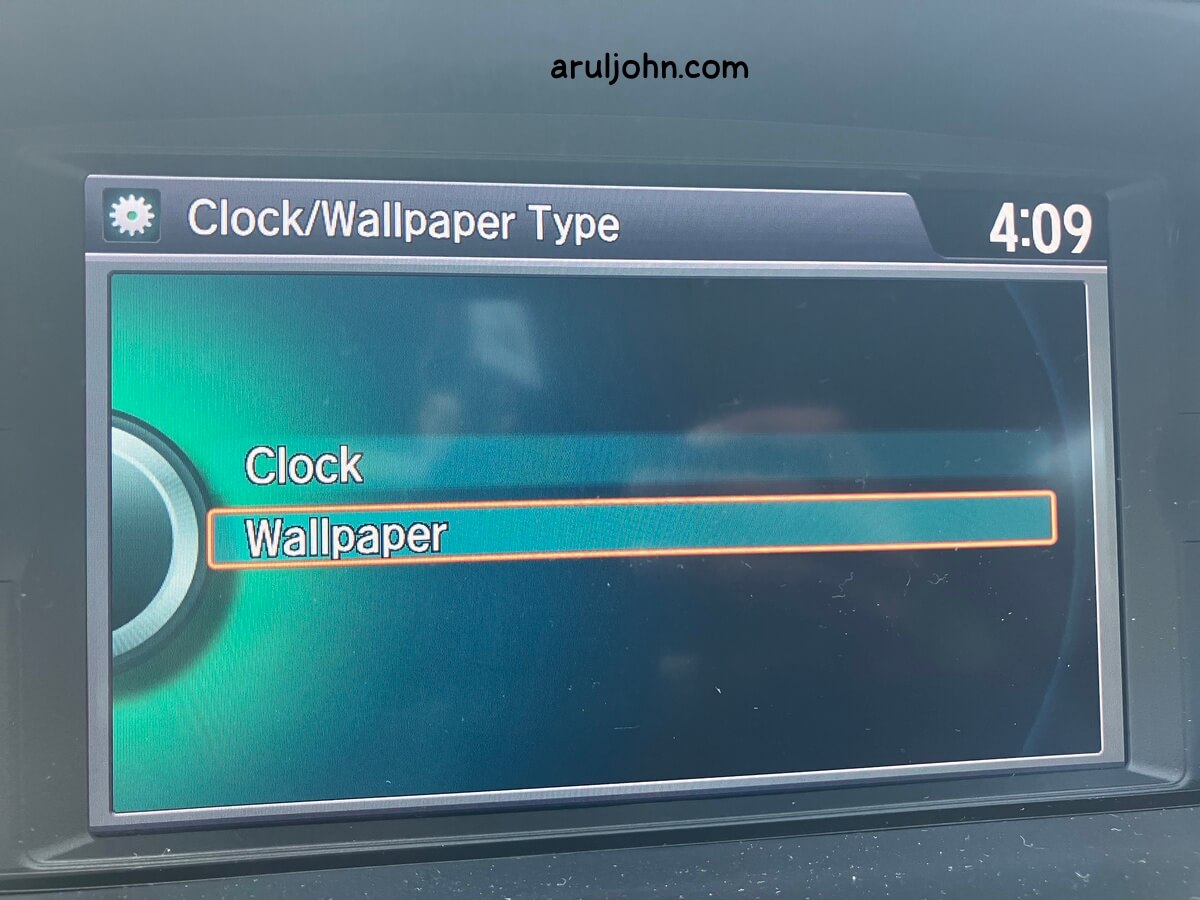
In the Wallpaper screen, scroll down and select Add New Wallpaper.
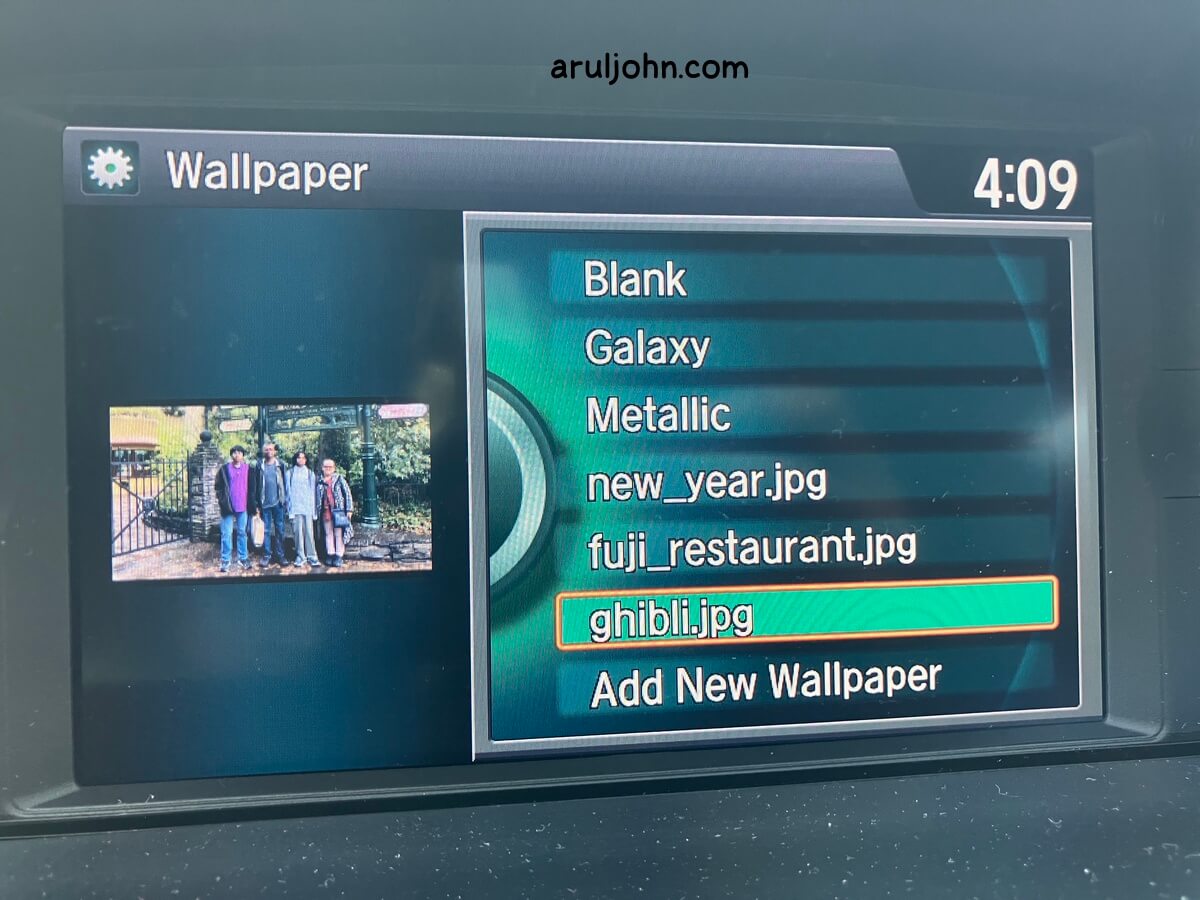
After a few seconds, your Odyssey will detect the images in your USB flash drive. Select the ones you want. They will be uploaded.
Click on the wallpaper image you want in this menu and select Set. That will become your default new wallpaper!
Maximum of 3 images
You can upload a maximum of 3 wallpaper images. If you want to upload a fourth image, you have to delete one of the existing 3 wallpaper images first.
Errors in invalid image format
While copying image from USB flash drive to Honda Odyssey wallpaper, you may get errors. This may be because you may have edited the file in GIMP or Photoshop or something else.
When you resize the image using other image editors such as GIMP or Photoshop, the resulting image may not be recognized by your Odyssey software. It happened to me a few times.
On the Mac, start the Terminal and run this command. In my case, I have a file named ghibli.jpg that was resized using the macOS's Preview app.
ghibli.jpg (made with Preview) ☺️
$ file ghibli.jpg
ghibli.jpg: JPEG image data, Exif standard: [TIFF image data, big-endian, direntries=6, orientation=upper-left, xresolution=86, yresolution=94, resolutionunit=2], baseline, precision 8, 1680x936, components 3
I resized the same image using GIMP.
ghibli_gimp.jpg (made with GIMP) 😥
$ file ghibli_gimp.jpg
ghibli_gimp.jpg: JPEG image data, JFIF standard 1.01, resolution (DPI), density 72x72, segment length 16, progressive, precision 8, 1680x936, components 3
As you can see, the image file contents are very different. The Odyssey will recognize if the image data is of TIFF format. It probably needs other key attributes as well.
SOLUTION
The solution is to use the system-default software like Paint or Preview to resize the images.
Error in image size
This may vary, but the safest image dimensions for upload are 1680x936 and 840x468.
You may be able to use a different image size, but it may or may not work.
SOLUTION
Resize to the dimensions mentioned above.
Conclusion
I hope this blog post worked for you. It took a few trial and error attempts to update the wallpaper, and it worked in the end. Feel free to comment below if this helped you. Thanks for reading.
Related Posts
If you have any questions, please contact me at arulbOsutkNiqlzziyties@gNqmaizl.bkcom. You can also post questions in our Facebook group. Thank you.